LINE Integration
Connect FAQSure to your LINE Official Account so your LINE bot automatically answers customer messages using your knowledge base.
How to Connect
Steps to Connect
- Get your Channel Secret from your LINE Official Account — manager.line.biz
- Get your Channel ID and Channel Access Token from the LINE Developers Console — developers.line.biz
- Enter all three values into FAQSure under Integrations → LINE
- Copy the Webhook URL provided by FAQSure and paste it into the LINE Developers Console
- Enable Use webhook and Webhook redelivery in the LINE Developers Console
You need access to both your LINE Official Account Manager and the LINE Developers Console to complete this setup.
If you do not have access to the LINE Developers Console, contact the FAQSure team for further assistance.
Full Instructions
Step 1: Get Your Channel Secret from LINE Official Account
-
Log in to your LINE Official Account at manager.line.biz
-
Select the LINE account you want to connect
-
Go to Settings → Messaging API and click “Enable Messaging API”
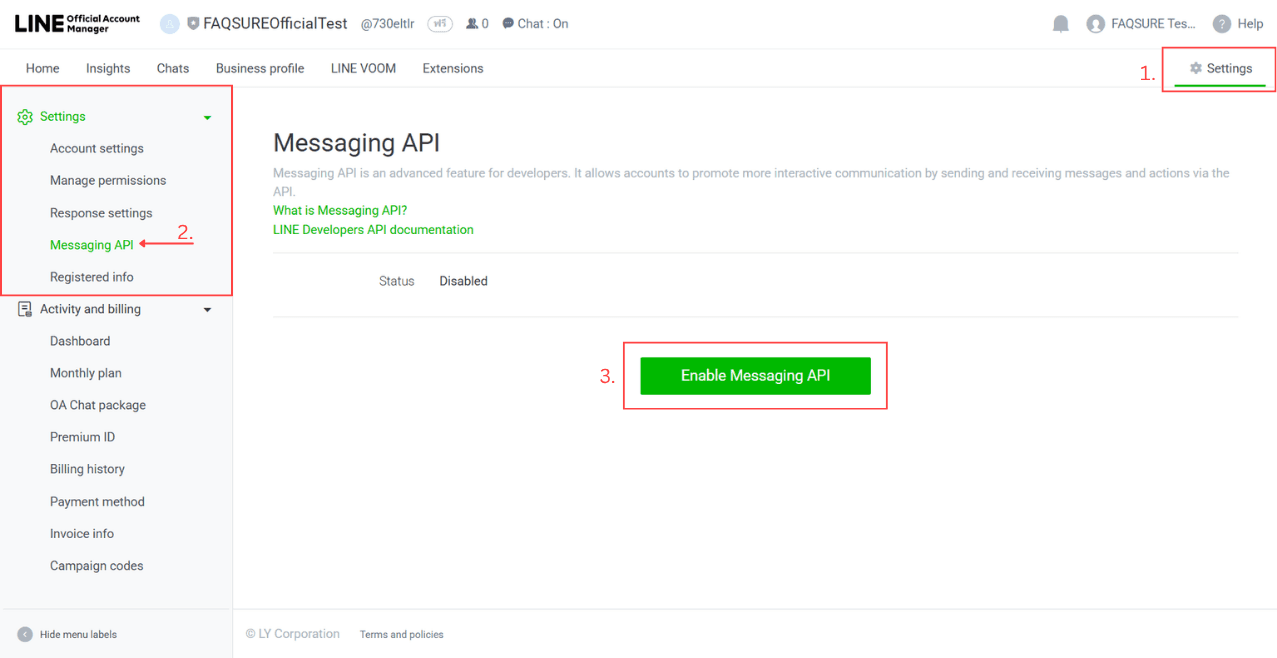 Settings → Messaging API → Enable Messaging API
 -
Create a LINE Developers Provider — optionally enter a Privacy Policy URL and Terms of Use URL
-
Confirm and create your Provider
-
Copy the Channel Secret — you will need this in Step 3
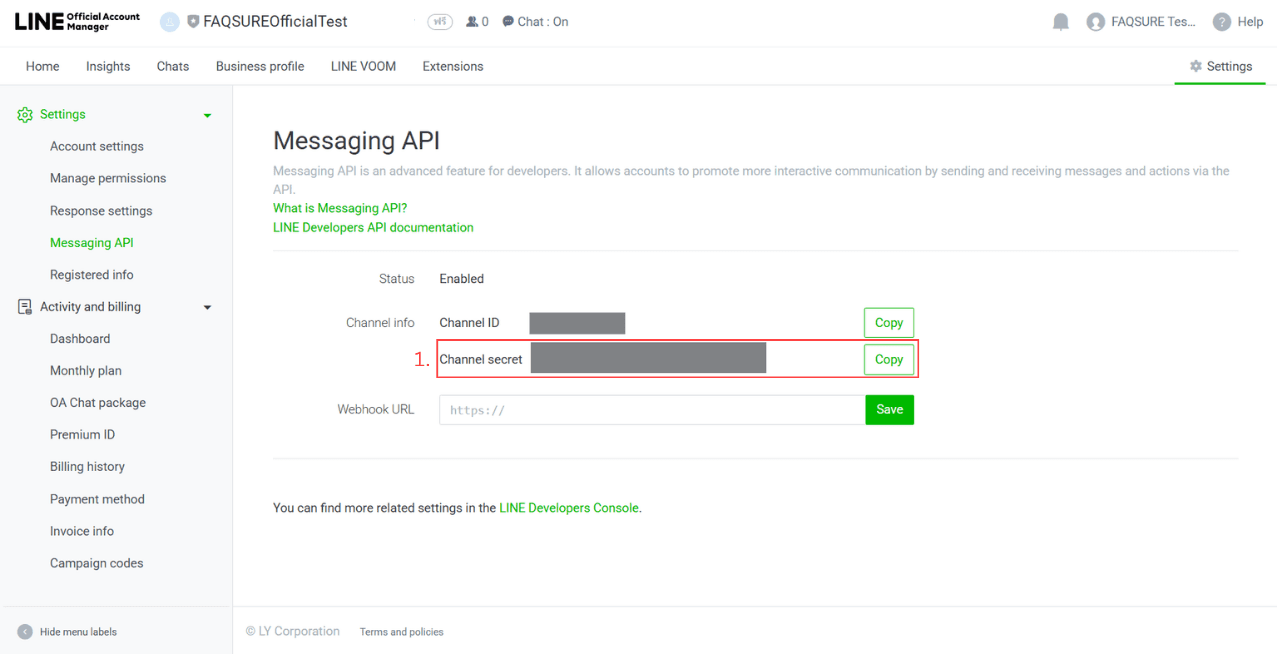 Copy the Channel Secret from the Messaging API settings page
Step 2: Get Your Channel ID and Access Token from LINE Developers Console
-
Go to the LINE Developers Console at developers.line.biz
-
Select the Provider you created above
-
Copy the Channel ID from the Basic Settings tab
-
Select your Messaging API channel and open the Messaging API tab
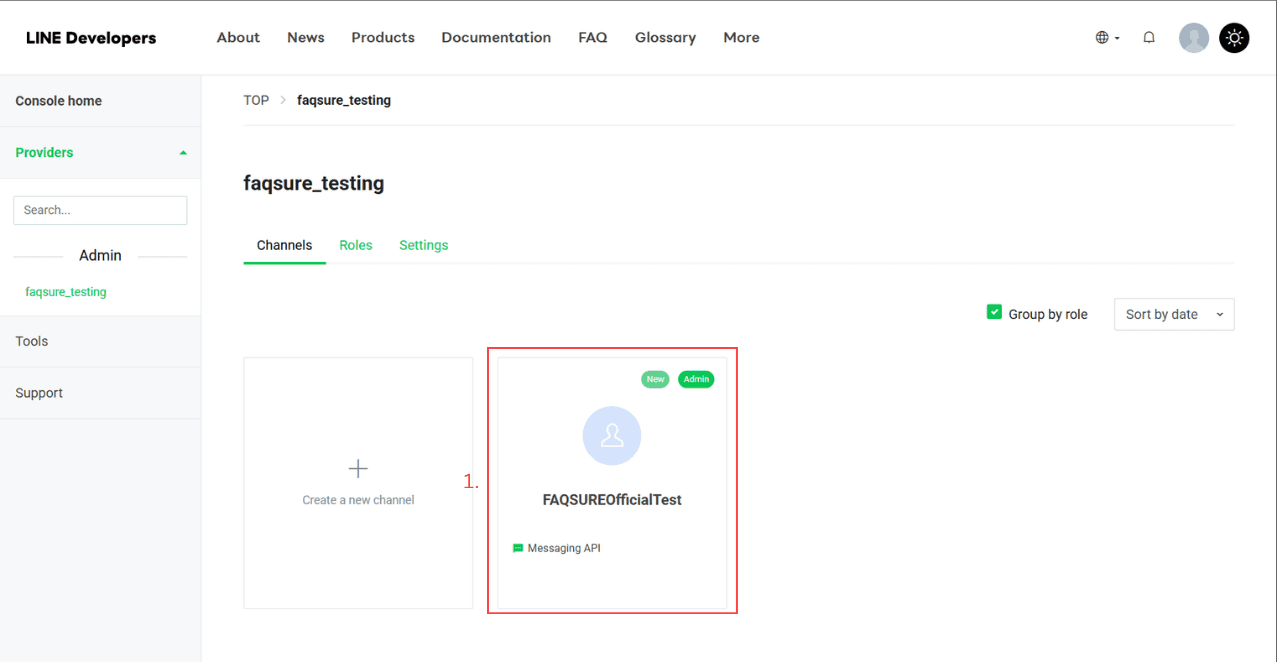 Select your Messaging API channel
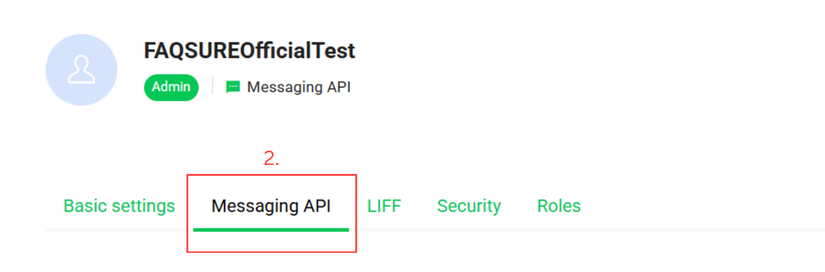 Select the Messaging API tab
 -
Scroll to the bottom of the Messaging API tab and click Issue to generate a Channel Access Token (long-lived)
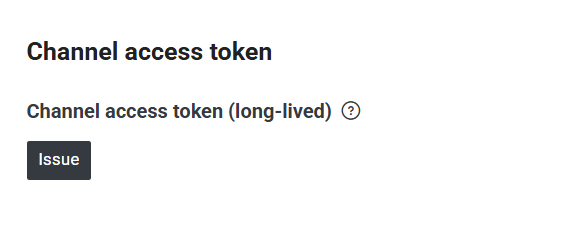 Issue a long-lived Channel Access Token
 -
Copy the token — you will need both Channel ID and Channel Access Token in Step 3
Step 3: Connect in FAQSure
-
In FAQSure, go to Integrations
-
Click Connect LINE
-
Enter the following values from Step 1 and Step 2, select the chatbot agent you want to use for this channel, then click Connect LINE.
Field Where to find it Channel ID LINE Developers Console → Basic Settings Channel Secret LINE Official Account Manager → Messaging API settings Channel Access Token LINE Developers Console → Messaging API tab (bottom) 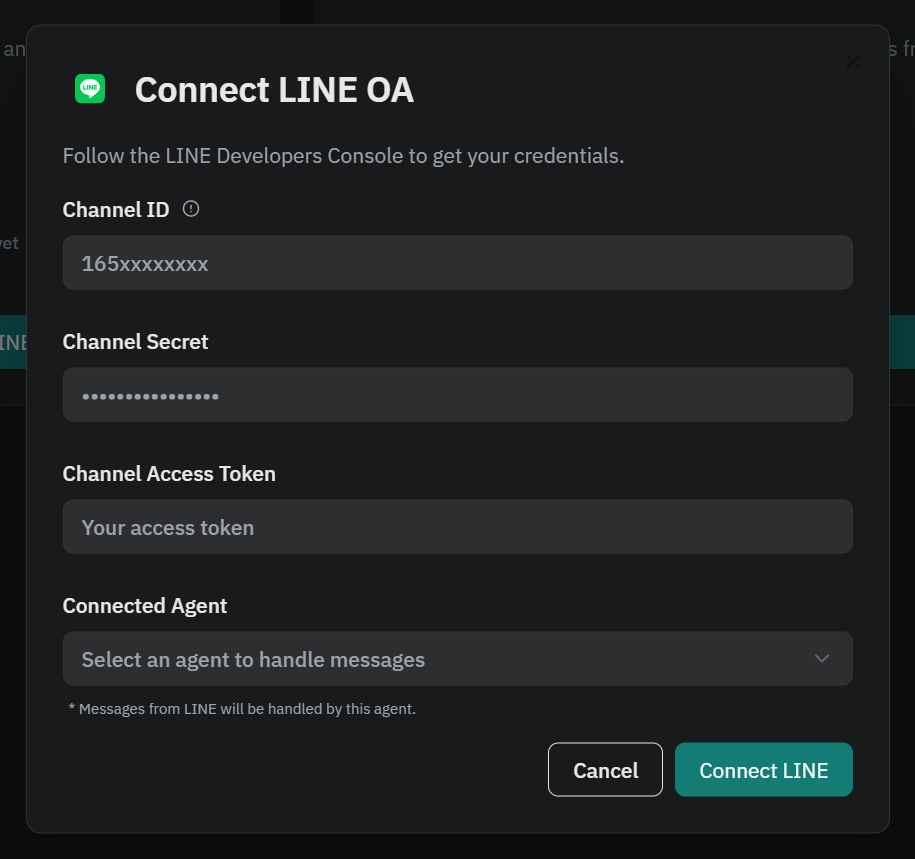 Enter your credentials and click connect LINE
 -
After connecting, FAQSure generates a unique Webhook URL for your account — copy it
Step 4: Set the Webhook in LINE Developers Console
-
Go back to the LINE Developers Console Messaging API tab
-
Under Webhook settings, paste your FAQSure Webhook URL:
https://api.faqsure.com/api/v1/line/webhook/{your-integration-id} -
Click Verify — LINE will confirm the connection is working
-
Toggle “Use webhook” ON
-
Toggle “Webhook redelivery” ON — confirm when prompted
Once connected, any text message sent to your LINE bot is automatically processed by FAQSure and replied to using your uploaded documents.
Assign an Agent
To change the agent that handles LINE messages for your LINE channel:
- Go to Integrations → LINE
- Select the new agent you want to use for this channel instead of your initial one from the dropdown box.
Additional LINE Features
Once connected, you can also send messages to your LINE followers from FAQSure:
| Feature | Description |
|---|---|
| Broadcast (text) | Send a text message to all followers |