Chat Widget
Embed a FAQSure chat bubble on any website. Visitors can ask questions and get instant AI-powered answers from your knowledge base without leaving the page.
How to Install
Steps to Install
- Go to Chat Widget tab in FAQSure
- Configure the widget (name, allowed domains, appearance)
- Copy the embed code shown on the page
- Paste the embed code into your website’s HTML before the closing
</body>tag
Your public key is embedded in the script tag. To prevent unauthorized use, always add your domain(s) to the Allowed Domains list — requests from unlisted domains will be blocked.
Full Instructions
Step 1: Create a Chat Widget in FAQSure
-
In FAQSure, go to Chat Widget tab
-
Click Create Widget
-
Fill in the initial configuration including the widget name for your reference internally and the connected agent which will be used to answer questions for the widget.
-
Click Create to create the widget.
-
In the widget settings page, you can configure the widget appearance and behavior.
Field Description Widget Title Text shown at the top of the chat window (default: “Support Chat”) Brand Color Accent color for the chat bubble and buttons (default: #2563eb)Logo URL Optional custom logo shown in the chat header Allowed Domains Domains where the widget is permitted to load (e.g. example.com)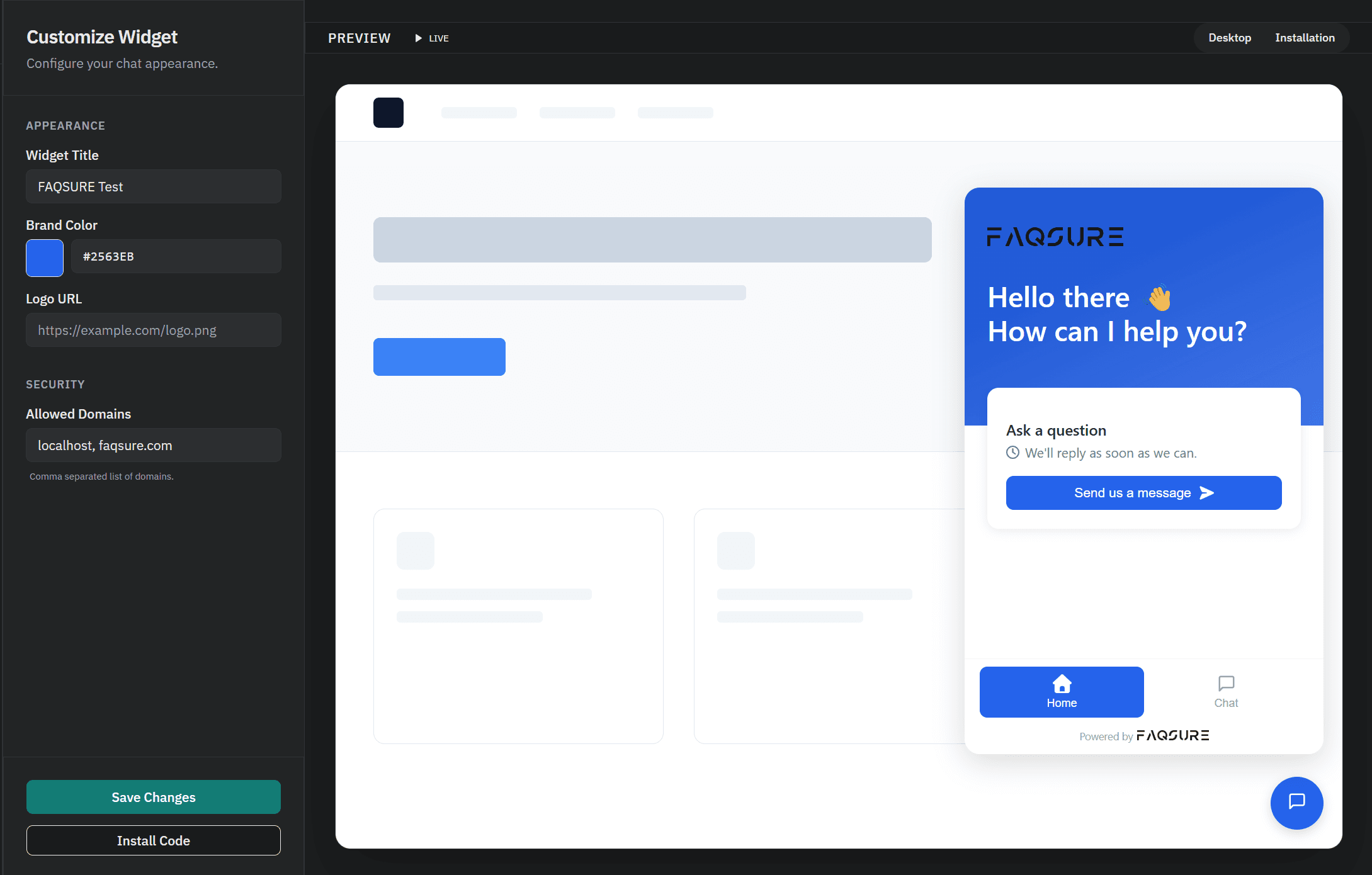 Configure your widget settings
 -
Click Save Changes
Step 2: Copy Your Embed Code
After saving, you can navigate to the embed code either through the Install Code button on the bottom left of the widget settings page or by clicking the Installation tab on the top right corner.
<script src="https://api.faqsure.com/static/widget.js"
    data-public-key="faq_pk_................"
    data-api-url="https://api.faqsure.com"
    data-title="FAQSURE Test"
    data-color="#2563eb"
    >
</script>
Click Copy to copy the full snippet.
Step 3: Add the Code to Your Website
Paste the embed code just before the closing </body> tag on every page where you want the chat widget to appear:
<html>
  <body>
    <!-- Your page content -->

    <script src="https://api.faqsure.com/static/widget.js"
      data-public-key="faq_pk_................"
      data-api-url="https://api.faqsure.com"
      data-title="FAQSURE Test"
      data-color="#2563eb"
      >
    </script>
  </body>
</html>
Step 4: Verify the Widget Appears
- Open your website in a browser
- You should see the FAQSure chat bubble in the bottom-right corner
- Click the bubble and type a test question to confirm it’s answering from your knowledge base
If the widget does not appear, check that your website’s domain is in the Allowed Domains list in FAQSure settings, and that the embed code is placed correctly before </body>.
Customization Options
All options can be set in the FAQSure dashboard or overridden via data- attributes in the embed code:
| Attribute | Default | Description |
|---|---|---|
data-title | "Support Chat" | Title shown at the top of the chat window |
data-color | "#2563eb" | Primary accent color |
data-logo | (none) | URL of a custom logo image |
data-position | "bottom-right" | Widget position: bottom-right or bottom-left |
Rate Limits
The Chat Widget has two rate limits to prevent abuse:
| Limit | Default |
|---|---|
| Requests per IP address | 10 per minute |
| Requests per session | 50 per hour |
Contact the FAQSure team to adjust these limits for your plan.